
Put your app’s screen in a phone
Add a phone
A Mockup is a 3D phone that moves in your Video. You give it a screenshot of your app, and Dranic puts it on the phone’s screen.
- Click Media at the top.
- Under Hero Shots, click the phone you like.
Upload your screenshot
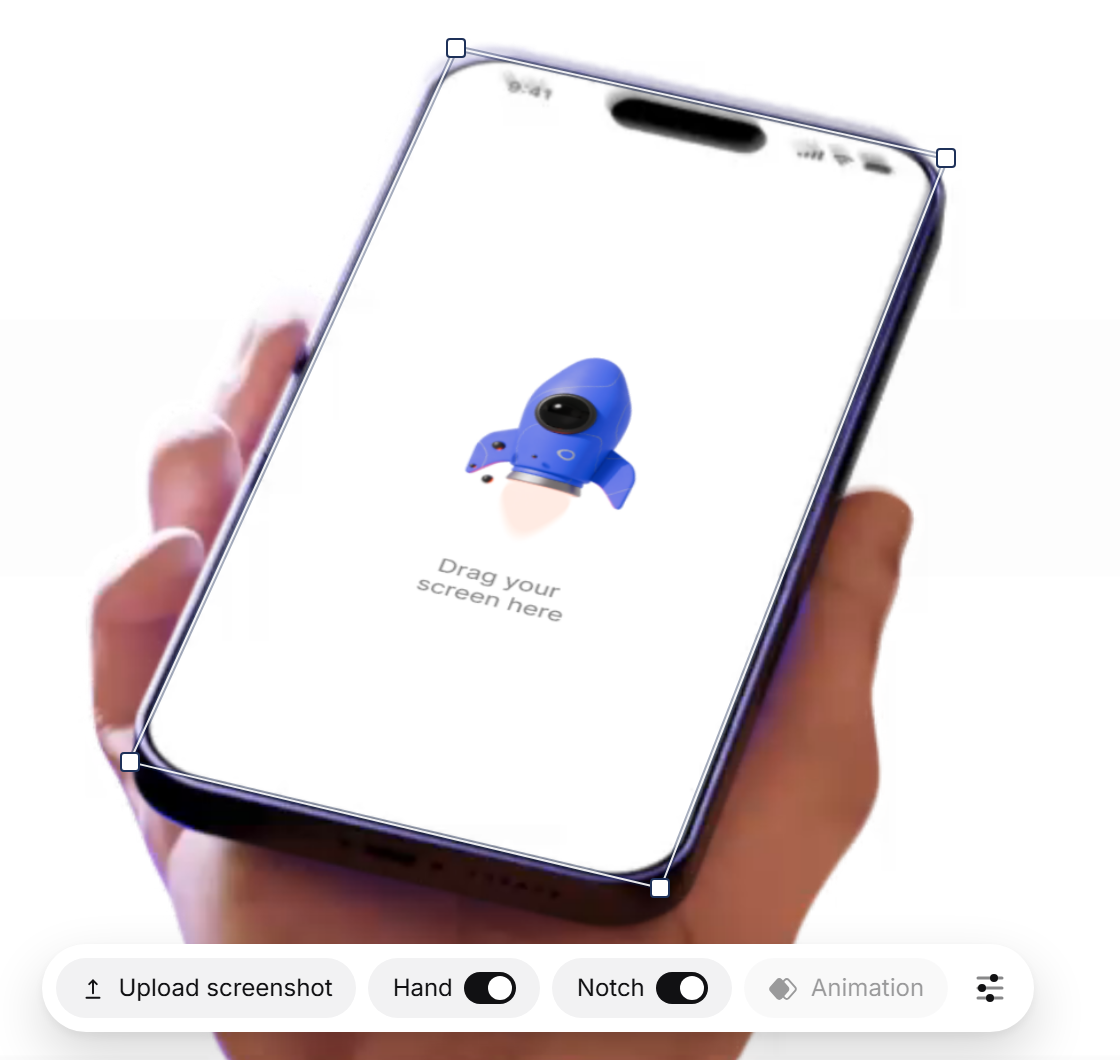
A new phone shows a rocket and the words Drag your screen here until you give it your own screenshot.
- Click the phone’s screen.
- In the bar that opens, click Upload screenshot.
- Choose your screenshot.
Which screenshot works
Use a full-screen screenshot taken on a phone. A wide picture, such as a screenshot of a computer screen, is too short, so Dranic won’t use it and the phone keeps its old screen. You’ll see This screenshot is too short for the mockup. Upload a taller screenshot.
To swap the picture later, click the screen again. The button now says Replace screenshot.
Hand and notch
Some phones are held in a hand or show a notch at the top. To hide the hand or the notch, turn off Hand or Notch in the same bar.
If a phone has no screenshot
When a phone still has no screenshot, the export window tells you which Shot it’s in and links to it. You can still export.
Still stuck?
Sign in and tell us what happened. We’ll email you back. Problem in the editor? Report it from the editor so we can see your screen.
To ask about a payment or a refund, go to paddle.net. For anything else, email support@dranic.com.