
Make your video shorter
Check the length
The length of your whole Video shows at the right end of the timeline, next to the word Total.
Shorten a Shot
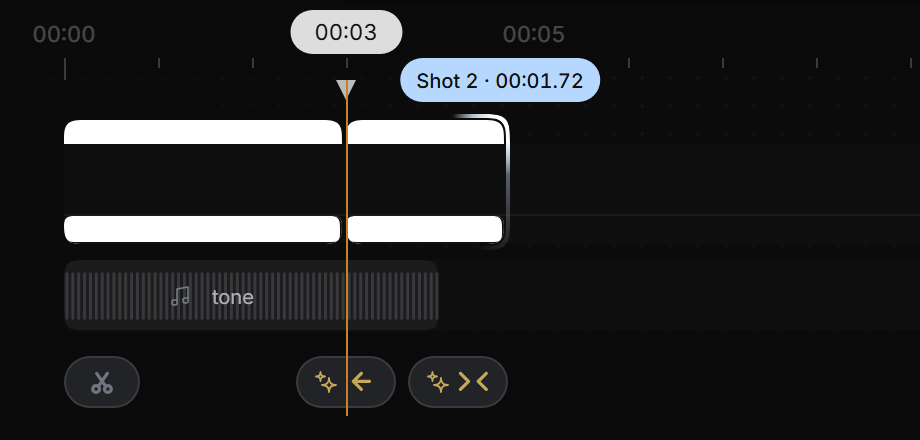
Drag the end of a Shot to make it shorter. Everything in the Shot is squeezed to fit the new length, so its motion plays faster.
- In the timeline, point at the right end of the bar above a Shot.
- Drag it to the left. A label shows the Shot’s new length as you drag.
- To undo, press Ctrl+Z, or Cmd+Z on a Mac.
Hide a Shot
Hiding keeps a Shot but leaves it out of the Video, so it adds no time and doesn’t count toward Free’s 30 seconds. It doesn’t play in Preview or go into the export.
- In the timeline, right-click an empty spot in the Shot, not on a layer.
- Click Hide Shot.
Show it again
A small button with a closed eye and the Shot’s number stays on the timeline where the Shot was. Click it to bring the Shot back.
Delete a Shot
In the timeline, right-click an empty spot in the Shot, not on a layer, and click Delete Shot.
Still stuck?
Sign in and tell us what happened. We’ll email you back. Problem in the editor? Report it from the editor so we can see your screen.
To ask about a payment or a refund, go to paddle.net. For anything else, email support@dranic.com.